Horton IT Daily · Horton IT Enterprises LLC
Windows 11 without starting over.
Tuesday, September 29, 2026
A plain-English guide to upgrading your computer and protecting your photos, documents, and programs.
Archived issue: Prepared for 2026-09-29 and published October 2, 2026. News, event availability, and contract status reflect the original issue date; some deadlines have passed. Check the official notices before acting.
Step-by-step help · Windows 10 to Windows 11
Can I upgrade without losing my stuff?
Usually, yes—on a compatible computer, a normal upgrade is meant to carry your files forward. You do not have to start with an empty computer. But no upgrade is risk-free, and some older programs may need updating or may be removed because they do not work with Windows 11. Back up first.
The upgrade from Windows 10 is free through Microsoft for eligible computers. Check with the makers of important programs and printers before you start. Microsoft’s upgrade questions and answers.
Before you begin
- Make a spare copy of your important files. Include photos, documents, Downloads, and anything saved in other folders. Use an external drive or your existing backup service. If you use OneDrive, confirm the folders you need are included and syncing has finished. Open a few backed-up files to check them. A backup of selected folders does not automatically cover every file or installed program. Microsoft’s OneDrive folder-backup instructions.
- Check whether your computer qualifies. Open Microsoft’s PC Health Check instructions, install the app if needed, open it, and select Check now. Read the result. If it says your computer does not qualify, get help understanding the reason before continuing. Do not use a workaround to skip the checks.
- Keep your recovery key safe if your drive is encrypted. Encryption locks your files against unauthorized access. Windows may call it BitLocker or Device Encryption. Confirm you can retrieve the recovery key using Microsoft’s recovery-key guidance. Keep the key somewhere safe outside this computer; do not post it or send it in chat. For a work or school computer, ask its IT team before upgrading.
- Get ready. Plug a laptop into power, use a reliable internet connection, save your work, and allow time when you will not need the computer. Have your usual sign-in details available.
The easiest route: use Windows Update
- In Windows 10, click Start → Settings → Update & Security → Windows Update.
- Click Check for updates. Install available updates, restart if asked, and check again.
- When Windows Update offers Windows 11, click Download and install.
- Read the license terms. If you agree, click Accept and install.
- Let the download and installation finish. When asked, save your work and click Restart now. The computer may restart several times; leave it connected to power.
- Sign in when the login screen returns. Open your important files and programs and check your printer and internet connection. Keep your backup.
Based on Microsoft’s upgrade preparation guide and installation instructions.
What if Windows 11 is not offered?
Microsoft recommends waiting for Windows Update to offer it. There may be a compatibility problem even if the computer passes the hardware check. Ask your computer maker or technician to check the reason. Microsoft also provides an Installation Assistant, but do not use it to force past a known problem.
Avoid accidentally erasing your computer
If using Microsoft installation files with a technician, start setup while Windows is already running. At the “Ready to install” screen, confirm Keep personal files and apps. Stop if that option is unavailable. “Keep personal files only” removes programs; “Nothing” removes everything. Starting the computer from an installation USB for a clean installation can erase files and programs. That is not the upgrade route described above.
If you already have Windows 11: you do not need to install it again to get routine updates. If you are switching to another computer or starting with a blank drive, this same-computer upgrade guide does not apply; plan a file transfer and program installation instead.
Windows 10’s regular free support ended October 14, 2025. Do not assume staying on it provides ongoing free security fixes. If your computer cannot upgrade, ask about supported alternatives. Windows instructions checked September 29, 2026.
Online safety · a useful reminder
Who can still connect to your computer?
A remote-support program lets a technician help with your computer without being in the room. Criminals can misuse these same programs. A January 25, 2023 warning from U.S. cybersecurity agencies, including the Cybersecurity and Infrastructure Security Agency and the National Security Agency, explains this risk.
This is an older warning that still offers a useful lesson, not a report of a new attack today. Know which support programs are on your computer and who has permission to use them.
Today’s practical question: After someone fixes your computer, ask: “Can you still connect to it? If so, why, and for how long?”
Your two-minute computer check
Make a short list of who can help remotely.
Start with one computer you own or are responsible for. You do not need to be a computer expert to ask these questions.
- Find the program. Ask your technician which program they use to connect to your computer.
- Write down who uses it. Note the support company, who gave permission, and what help they provide.
- Ask who can connect. Find out whether someone can connect when you are not there, and whether you still need that service.
- Clear up anything unfamiliar. Ask the person responsible for the computer to investigate programs you do not recognize and remove access you no longer need.
Check with your technician before deleting a support program—it may be needed to keep your computer working. Your list can be simple: computer name, support program, person responsible, reason it is needed, and date to check again.
Reference: joint Guide to Securing Remote Access Software, June 6, 2023 (PDF)
Government work · requests for prices
Three opportunities for businesses to review.
These government buying notices were checked on SAM.gov on September 29, 2026. The first two are reminders from yesterday; the Navy repair job is an additional lead. The agencies are asking for offers. Read each notice and its latest changes before spending time on a bid.
FDIC · Fortify On Demand Software Subscriptions
Request for a price quote: CORHQ-26-Q-0283. Business classification code (NAICS): 513210. The notice does not reserve this opportunity for a particular small-business group.
Offers due October 1, 2026, at 5:00 p.m. Central Daylight Time. The Federal Deposit Insurance Corporation (FDIC) is seeking software subscriptions. Read the first official change, called Amendment 0001, and its answers to supplier questions. The question deadline has passed. Your business must meet all the bid requirements, not just have the listed industry code.
FDIC · Webex online meeting subscriptions and maintenance
Request for a price quote: CORHQ-26-Q-0369. Business classification code (NAICS): 541519. No particular small-business group is given a reserved opportunity in the notice.
Offers due October 2, 2026, at noon Eastern Daylight Time according to the deadline field. One change document says Eastern Standard Time instead; ask the buying office to confirm. FDIC wants Webex subscriptions and maintenance. Suppliers must provide prices and the requested software and support agreements. Look for Amendment 0002, an announced follow-up document, before sending a quote.
U.S. Navy · Repair specialized communications equipment
Buying notice N0038326QHA90. Business classification code (NAICS): 334290. The field for special small-business eligibility is blank; do not assume that means every supplier qualifies.
Offers due October 5, 2026, at 4:30 p.m. Eastern Daylight Time. This is a specialized repair job for communications part 02697600-100-001. The work description names Sierra Nevada Corporation and includes strict repair, quality, test-equipment accuracy, and technical-document requirements. Check whether your company is an approved repair source and can meet those conditions.
Learning corner · upcoming online classes
Put useful learning on the calendar.
Breaking Into Cybersecurity
October 20, 2026 · 1–2 p.m. Eastern Daylight Time · Online session
Hear recent graduates explain how they got their first cybersecurity jobs. This National Institute of Standards and Technology (NIST) event is useful for students and people considering a career change.
Event details and registrationDevSecOps and the Impact of Agentic AI
October 28, 2026 · 1–3 p.m. Eastern Daylight Time · Online session
This NIST session looks at building safer software and how artificial intelligence fits into that work. The official event title is technical, but the subject is practical: making security part of building and running programs. Attendance is free, with a listed limit of 500 people.
Event details and registrationCheck the event page for available places and changes. Attending does not give you a professional certification.
On this day in technology
September 29, 1962: Alouette I launches.
Canada’s Alouette I satellite launched on September 29, 1962, to study the upper atmosphere. The Canadian Space Agency describes how its planned one-year life became a ten-year mission. It is a reminder that reliable engineering and useful measurements can outlast the original project plan.
IT Life · original comic
The long goodbye.
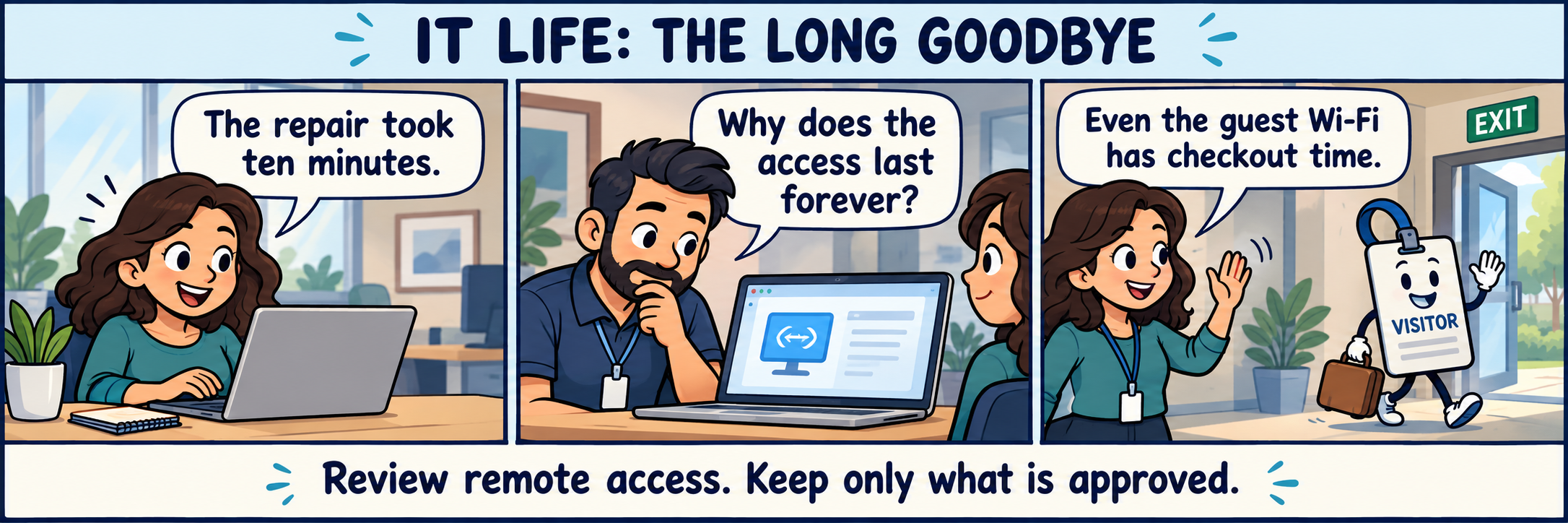
Comic transcript
- An employee at a laptop says: “The repair took ten minutes.”
- A technician notices the remote-support app: “Why does the access last forever?”
- The employee waves goodbye to a visitor badge: “Even the guest Wi-Fi has checkout time.”
Caption: “Review remote access. Keep only what is approved.”
Daily zodiac horoscope · September 29, 2026
A moment for your sign.
Entertainment only. Brief paraphrases of Samir Jain’s September 29 horoscope in The Times of India.
A friend may bring career possibilities.
Curiosity grows; keep impatience in check.
Rushing could disrupt your rhythm.
Team encouragement supports a fresh project.
Creative efforts may draw appreciation.
Relief brings room to help others.
Make space for quiet and rest.
Family time offers a bright spot.
Recognition competes with a busy workload.
A delayed project could regain momentum.
Careful reading beats hurried commitments.
Home and relationships hold your attention.
Before you close this tab
Take one small step today.
Thinking about Windows 11? Start by checking your backup and running Microsoft’s PC Health Check. Then ask your technician who can still connect to your computer. You do not need to do everything at once.