Horton IT Daily
Read the Whole File Name
A two-minute habit for unexpected attachments, your October Windows guide, a verified software-security opportunity, and a little weekend humor.
Saturday, October 3, 2026 · Horton IT Enterprises LLC
Archived issue — October 3, 2026. Published October 6, 2026. News and contract listings reflect the original issue date. Some deadlines have passed; check the linked official notices for current requirements and amendments.
An attachment says “invoice.” Does that make it a bill? Before opening an unexpected file, pause. Today’s small task is to make Windows show the ending of file names.
An unexpected attachment deserves a second look
Practical security guidance, checked October 3—not a newly announced attack. Microsoft warns that phishing messages can look like ordinary messages from familiar people. Phishing means using a deceptive message to steal information or persuade someone to do something unsafe.
Do not open an unexpected attachment just because you recognize the sender’s name. Contact the person through a phone number or other channel you already trust. A request to install a program, change security settings, or enable document macros is a warning sign. Macros are small programs that can run inside documents.
Primary guidance: Microsoft: How to protect against phishing attacks, updated July 14, 2026.
Show the ending of file names
A file extension is the ending after the last dot in a file name. Examples include .pdf for a PDF document and .exe for a program.
- In the taskbar search box, type File Explorer. Open File Explorer.
- Windows 11: select View → Show → File name extensions.
- Windows 10: select View. In Show/hide, select File name extensions.
- Look at a familiar file already on your computer. Do not download a suspicious attachment to practice.
Example: invoice.pdf.exe ends in .exe. It is a program, even though “pdf” appears earlier in the name. A familiar extension alone does not prove that a file is safe. Renaming the ending does not convert the file or make it safe.
Windows 10 to Windows 11: keep your files and apps
The normal upgrade is intended to preserve your personal files and compatible apps. Preservation is never guaranteed. Back up first. Some older programs may need updating or replacing.
Before you begin
- Check compatibility. Open Microsoft’s PC Health Check guide. Install the app if needed, open it, and select Check now. Even an eligible computer can have a temporary compatibility hold—a delay to protect it from a known problem. Wait for the Windows Update offer.
- Verify your backup. Copy important files to an external drive or confirm their OneDrive upload has finished. Open several backup copies. A file backup does not preserve every installed program.
- Check essential apps and accessories. Ask their makers about Windows 11 support, including your printer. Save your work and connect laptop power. Ask your administrator before upgrading a work-managed computer.
Use Windows Update
- In Windows 10, open Start → Settings → Update & Security → Windows Update.
- Select Check for updates. Install offered updates, restart if asked, and check again.
- When Windows 11 is offered, select Download and install.
- Read the terms. To continue, select Accept and install.
- Save your work. When prompted, select Restart now. Let the computer finish its restarts.
- Sign in. Check your important files, apps, and printer.
No upgrade offer? Do not bypass the requirements or a compatibility hold. Get help understanding PC Health Check’s result.
Official guidance checked October 3, 2026: Preparation and backups · Installation steps · Files, apps, and upgrade FAQ.
Learn now, or put a webinar on your calendar
Start with the basics
Microsoft Learn’s Describe basic cybersecurity threats, attacks, and mitigations is a beginner module with seven units. It covers harmful software and ways to reduce risk. It is self-paced; there is no scheduled attendance time.
Explore cyber career paths
October 21, 2026, 1:00–2:00 p.m. EDT. EDT means Eastern Daylight Time.
The National Institute of Standards and Technology’s virtual webinar, Helping to Chart the Course—Unlocking Student Pathways into Cybersecurity Careers, focuses on tools educators and advisers can use to help students plan careers.
Official details and registration. Check the organizer’s page before attending.
Open SAM.gov Cybersecurity & IT Contracts
Live notice checked October 3, 2026, about 8:38 a.m. EDT. One verified listing today. This is a request for proposals, not an award or a sources-sought survey.
Software Supply Chain Security Solution
Agency: Federal Deposit Insurance Corporation (FDIC)
Notice: CORHQ-26-R-0394
Offers due October 9, 2026, 1:00 p.m. EDT
Status/type: Active · Solicitation (Original), published September 28. The visible history lists that original notice.
Scope: Software to help protect the components an organization uses to build and deliver software.
Eligibility: No set-aside used; it is not reserved for a particular small-business group. Industry code 513210—Software Publishers. The notice requires pricing and pre-award supply-chain-risk spreadsheets. It says the request for proposals is non-transferable without advance contracting-officer approval.
Questions window closed: October 2 at noon. The description omits the timezone for that cutoff. The offer-deadline field explicitly says EDT.
Read the official notice and attachments. Review all requirements, submission instructions, and later amendments before deciding whether your firm qualifies.
October 3, 1962: Sigma 7 takes flight
NASA astronaut Wally Schirra launched aboard Sigma 7 on this date and completed six orbits of Earth. The mission emphasized engineering and spacecraft performance. It is a reminder of the care that goes into testing systems people depend on.
The File Disguise
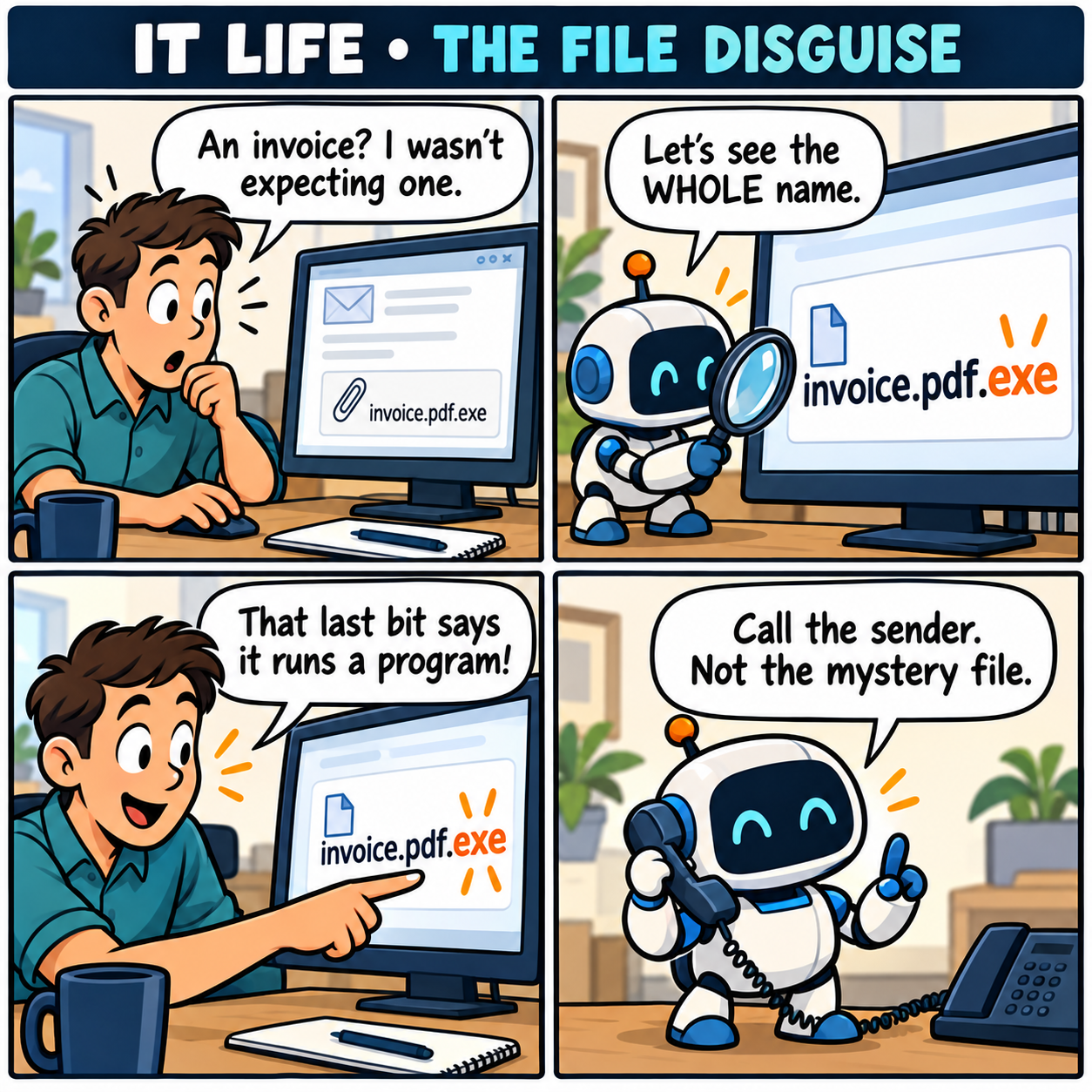
Comic transcript
- Worker: “An invoice? I wasn’t expecting one.”
- Robot: “Let’s see the WHOLE name.” The screen shows invoice.pdf.exe.
- Worker: “That last bit says it runs a program!”
- Robot: “Call the sender. Not the mystery file.”
Original fictional comic for Horton IT Daily, made with AI-generated artwork.
Two jokes for your coffee break
1. Office exercise
How does a computer stretch?
It opens more windows.
2. Weekend plans
Why did the keyboard take Saturday off?
It needed some space.
Sysadmin horoscope · October 3
Today’s zodiac spotlight: Libra. The AstroTwins’ October 3–4, 2026 forecast on Astrostyle encourages revisiting familiar favorites and making use of what you already have.
Our playful office adaptation: Before wishing for a new gadget, rediscover one useful feature on your current computer. Stars do not diagnose computers or predict security incidents.
Read the source forecast. This rolling page changes; the summary above refers to October 3–4, 2026.