“I have a Windows computer” is a start. The exact version helps a support person choose the right instructions. Today’s small task: find it and write it down.
A security update for Fiddler Classic users
Canada’s Cyber Centre published advisory AV26-999 on October 5, 2026. It covers Progress products, including Fiddler Classic. Progress also updated its notice for CVE-2026-77805 on October 5. The vendor identifies the vulnerability as an August 2026 issue; this is updated guidance, not a claim that the flaw was discovered yesterday.
Fiddler Classic is a tool used to investigate web traffic. On Windows, affected versions can launch a substituted helper program. An attacker with local access could gain higher permissions if the user launches that helper and approves its administrator prompt.
Sources: Cyber Centre AV26-999 · Progress advisory and update instructions. Checked October 6, 2026.
Find your Windows edition and version
An edition is a product name, such as Windows 11 Pro. A version identifies its release. These details help someone give you the right support steps.
- Open Start → Settings.
- Select System → About.
- Find Windows specifications.
- Write down the Edition and Version. Keep them with your support notes.
Send only the details your trusted support person needs. You do not need to post a picture of the entire About page in a public forum.
Windows 10 to Windows 11: keep your files and apps
A normal upgrade is intended to keep personal files and compatible apps. That is never a guarantee against data loss. Back up first.
Prepare before upgrading
- Check compatibility. Open Microsoft’s PC Health Check app and select Check now. If needed, install it using Microsoft’s guide. A compatibility hold is a temporary delay while a known problem is addressed. Wait if Windows has placed one on your computer.
- Verify your files. Copy important files to an external drive or confirm they have finished syncing to OneDrive. Open several copies from the backup location. Our practical check: include a recent document and an important photo. File copies do not preserve every installed app.
- Check your essentials. Confirm Windows 11 support with the makers of your important programs, printer, scanner, and other accessories. Ask your workplace administrator before upgrading a managed computer. Save work and connect your laptop to power.
Upgrade through Windows Update
- In Windows 10, select Start → Settings → Update & Security → Windows Update.
- Select Check for updates. Install available updates for your current Windows version, restart if prompted, and check again.
- When Windows 11 is offered, select Download and install.
- Read the license terms. If you agree, select Accept and install.
- When requested, save your work and select Restart now. Allow the installation to finish, including its restarts.
- Sign in and check your important files, apps, and accessories.
If no upgrade is offered, review PC Health Check and wait for Windows Update’s offer. Do not force past hardware requirements or compatibility holds.
Microsoft guidance rechecked October 6: installation steps and preservation choices · files, apps, and accessories FAQ · preparation and backups.
Two upcoming online sessions
The National Institute of Standards and Technology (NIST) lists these events. These are upcoming sessions, not new announcements today.
Help students explore cybersecurity careers
October 21, 2026 · 1:00–2:00 p.m. EDT · Online
The NICE webinar, “Helping to Chart the Course,” covers tools that connect students’ interests with cybersecurity jobs. Designed especially for educators, advisers, and counselors.
How teams build safer software
October 28, 2026 · 1:00–3:00 p.m. EDT · Online
“DevSecOps and the Impact of Agentic AI” looks at security throughout software development and at artificial-intelligence systems that carry out tasks. This is the more technical session. NIST lists no attendance fee and a 500-person limit.
EDT means Eastern Daylight Time. Both organizer pages were checked October 6. Register yourself if interested; attendance has not been booked for you.
Open SAM.gov Cybersecurity & IT Contracts
Official live notice checked October 6, 2026, at approximately 8:34 a.m. EDT. Status and dates can change; review the complete notice and attachments before preparing an offer.
FDIC: Software Supply Chain Security Solution
Agency: Federal Deposit Insurance Corporation (FDIC).
Notice ID: CORHQ-26-R-0394.
Status/type: ACTIVE · Solicitation (Original), published September 28, 2026. This requests proposals, unlike a sources-sought survey.
Scope: A software supply-chain security solution—technology for addressing risks in the software an organization uses.
Offers due October 9, 2026, at 1:00 p.m. EDT.
Eligibility: “No Set aside used.” Industry code 513210, Software Publishers. This does not establish any individual company’s eligibility. Read all solicitation requirements.
Submission caveats: Required attachments include the pricing workbook and pre-award supply-chain risk spreadsheet. Follow the proposal delivery instructions in Section 7.3.1-06. The request for proposals is non-transferable without the contracting officer’s advance approval.
Questions: The October 2 noon question cutoff has passed. Its description did not name a timezone. The offer deadline field explicitly uses EDT.
October 6, 1983: Lotus goes public
Lotus Development Corporation became publicly traded on this date. The Computer History Museum credits much of its success to Lotus 1-2-3, which combined spreadsheet work with charts and data retrieval. A spreadsheet is a grid of cells used to organize information and calculate numbers.
A computer with a complicated identity
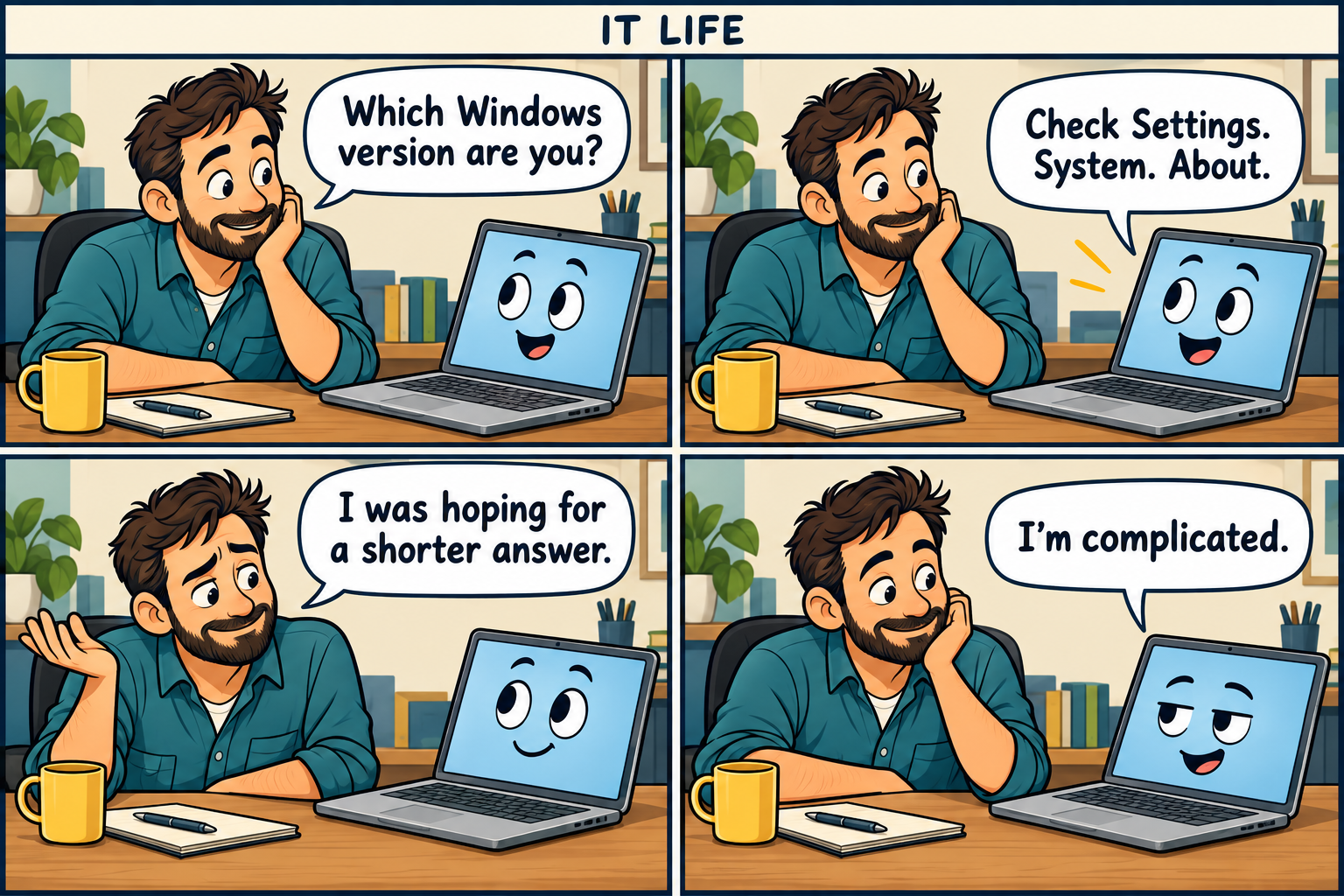
Comic transcript
- Worker: “Which Windows version are you?”
- Laptop: “Check Settings. System. About.”
- Worker: “I was hoping for a shorter answer.”
- Laptop: “I’m complicated.”
Two quick computer jokes
- Why did the computer bring a sweater? Someone left its Windows open.
- Why did the mouse bring a tiny suitcase? It was going on a scroll trip.
Sysadmin horoscope: Aries spotlight
For October 6, 2026, the AstroTwins’ Aries forecast emphasizes tact: offer criticism gently and include encouragement. Our office interpretation: make that support reply kind as well as clear.
A playful reading, not technical or professional advice. Briefly paraphrased from the AstroTwins at Astrostyle, October 6 daily horoscope.
One useful thing before you go
Write down your Windows edition and version today. When you next need help, you will have a clearer starting point.