An urgent email can look convincing. Before opening its attachment or sending information, take a moment to check who is really asking. Today’s practical lesson is a pause, not a new product to buy.
A display name does not verify a sender
Phishing messages try to persuade you to reveal information or open something harmful. A logo, job title, or familiar sender name is not enough to establish trust. The National Institute of Standards and Technology’s small-business guidance recommends training people to recognize and report suspicious messages and protecting accounts with multifactor authentication.
This is general prevention guidance, not an announcement of a newly discovered vulnerability. NIST small-business phishing resources.
Make a trusted-contact bookmark
- Open a new browser tab and use the organization’s website address you already know.
- Find its contact or support page. Check the spelling of the website address carefully.
- Bookmark that page. Use it next time an unexpected message asks you to act.
- If the request still seems unusual, contact the organization through that page before sending files or money.
A padlock or HTTPS connection protects the connection; it does not establish that the organization behind an unfamiliar site is the one you intended. If you are unsure, ask your IT support person.
Windows 10 to Windows 11: keep your files and apps
A normal upgrade is intended to keep personal files and compatible apps. That is never a guarantee against data loss. Back up first.
Prepare before upgrading
- Check compatibility. Open Microsoft’s PC Health Check app and select Check now. If needed, install it using Microsoft’s guide. A compatibility hold is a temporary delay while a known problem is addressed. Wait if Windows has placed one on your computer.
- Verify your files. Copy important files to an external drive or confirm they have finished syncing to OneDrive. Open several copies from the backup location. Our practical check: include a recent document and an important photo. File copies do not preserve every installed app.
- Check your essentials. Confirm Windows 11 support with the makers of your important programs, printer, scanner, and other accessories. Ask your workplace administrator before upgrading a managed computer. Save work and connect your laptop to power.
Upgrade through Windows Update
- In Windows 10, select Start → Settings → Update & Security → Windows Update.
- Select Check for updates. Install available updates for your current Windows version, restart if prompted, and check again.
- When Windows 11 is offered, select Download and install.
- Read the license terms. If you agree, select Accept and install.
- When requested, save your work and select Restart now. Allow the installation to finish, including its restarts.
- Sign in and check your important files, apps, and accessories.
If no upgrade is offered, review PC Health Check and wait for Windows Update’s offer. Do not force past hardware requirements or compatibility holds.
Microsoft installation, preparation and preservation guidance rechecked October 8: installation steps and preservation choices · files, apps, and accessories FAQ · preparation and backups.
Explore pathways into cybersecurity careers
NIST lists the NICE webinar “Helping to Chart the Course: Unlocking Student Pathways into Cybersecurity Careers” for October 21, 2026, 1–2 p.m. EDT. It is aimed at people helping students connect their interests with cybersecurity work.
Read the organizer’s details and registration information.
Organizer listing checked October 8. This is an upcoming event, not a new announcement today.
Open SAM.gov Cybersecurity & IT Contracts
Previously tracked: FDIC Software Supply Chain Security Solution, CORHQ-26-R-0394. The October 6 check recorded an October 9, 1 p.m. EDT proposal deadline. That earlier snapshot may have changed. Check the official notice and amendments before considering a response.
Verified Virginia IT opportunity: seven laptops
Brunswick County’s RFP129238 requests seven new laptops, with responses due October 9 at noon EDT. Authorized-reseller/support status and two comparable references are required. This is a state/local opportunity, not a SAM.gov federal listing.
Read the official eVA posting and full requirements.
eVA notice and original requirements checked October 8. A listing does not establish that every reader qualifies or can supply the specified equipment.
October 8, 1996: a stamp for computer history
The U.S. Postal Service issued a Computer Technology stamp marking ENIAC’s fiftieth anniversary. The Computer History Museum records a ceremony at Aberdeen Proving Ground and notes that the stamp itself was designed on a computer.
Verify first. Click later.
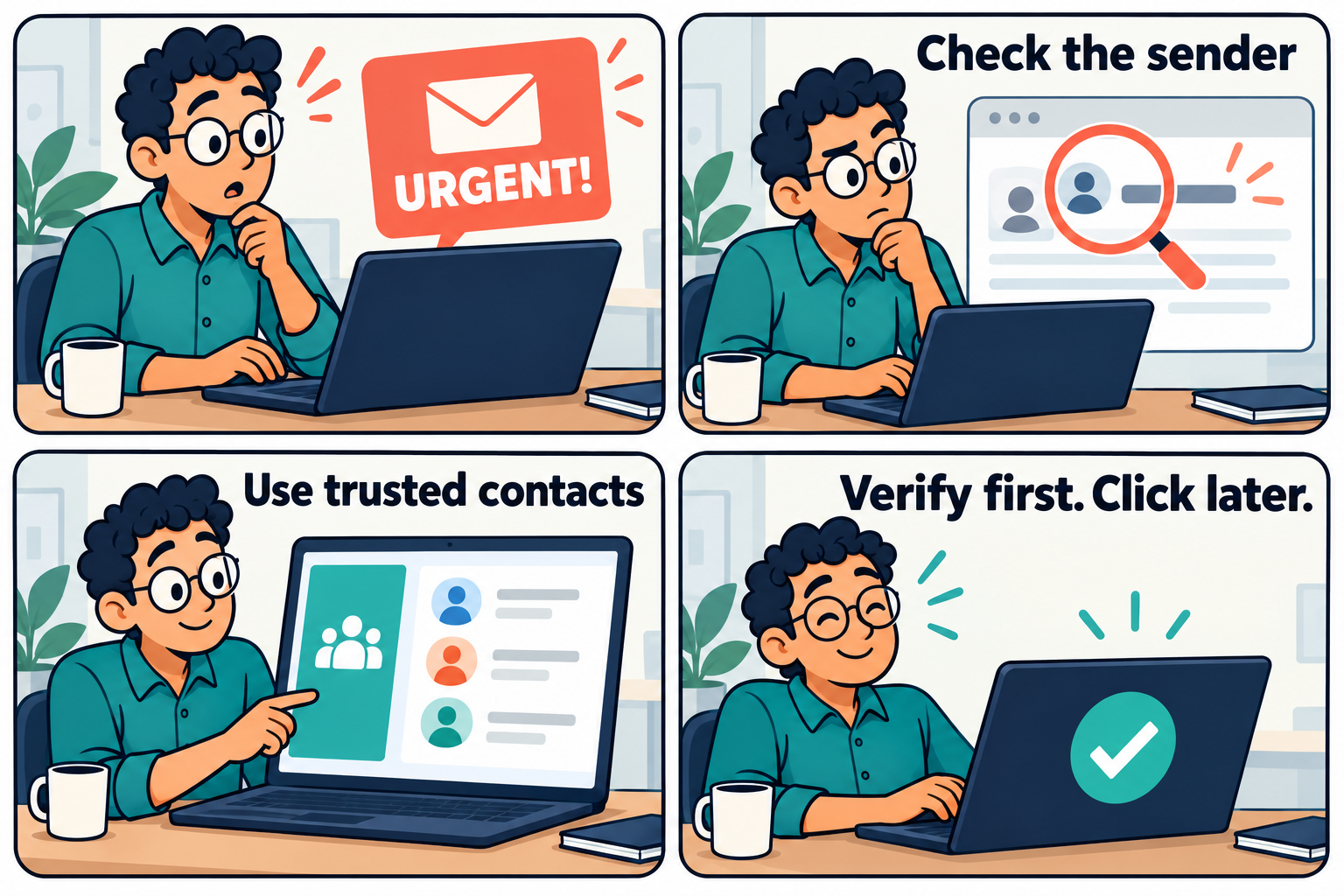
Comic description
An urgent message catches an office worker’s attention. They check the sender and consult their trusted contacts before acting. The final reminder: verify first, click later.
Two quick computer jokes
- Why did the computer take a nap? It needed to clear its cache.
- Why was the keyboard such a good neighbor? It always gave people space.
Capricorn spotlight
Renee Watt’s October 8 Capricorn reading suggests carrying on with existing work and using wandering attention to imagine a more enjoyable routine. Treat it as a lighthearted reflection, not a prediction or business advice.
Briefly paraphrased from Astrology.com’s October 8, 2026 daily Capricorn horoscope; checked October 8.
One useful thing before you go
Save one trusted contact page today. When the next urgent email arrives, you will have a safer place to check its story.